
Guide to Get API Code
Explore visually, deploy instantly - turn your generations into production ready code
The Get API Code feature bridges the gap between experimenting in the Leonardo web app and implementing via the Production API. Once you've achieved the results you want in the web app, you can instantly export the exact configuration as ready-to-use code snippets.
How It Works
After generating an image or video in the Leonardo web app, you can access the Get API Code option from the generation's menu. This opens a modal where you can select your preferred programming language and copy the code snippet to use in your application.
This feature is available to users with an active Production API account.
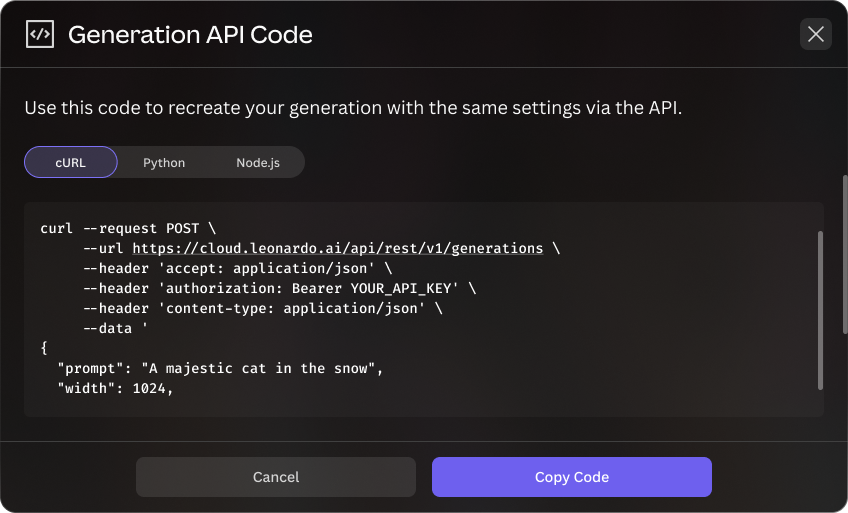
Using Get API Code
Follow these steps to export your generation as API code:
- Generate your content in the web app
Create an image or video in the generation page. Choose model, and adjust all parameters and settings until you achieve your desired result. - Access the generation menu
Once your generation is complete, click the three-dot menu (⋯) on the generation to open additional options. - Select Get API Code
From the menu, choose Get API Code. - Select your programming language
In the modal that opens, choose from available programming languages: cURL, Python, or Node.js. - Copy the code snippet
Click the copy button to add the code snippet to your clipboard. The snippet includes all the parameters and settings from your web app generation, pre-configured with the correct API endpoint. - Implement in your application
Paste the code into your project. Remember to replace YOUR_API_KEY with your actual Production API key.
Note
- Test the code snippet with a small number of generations first to ensure it works as expected.
- The code snippet reflects the exact settings from your web app generation, but you can modify parameters as needed.
- Review the specific model guide in our documentation for additional parameter options or further guidance on capabilities.
When Get API Code Isn't Available
Not all models currently support code snippet generation. If you attempt to use Get API Code on an unsupported model, you'll see a message explaining that the feature isn't available for that specific model.
In these cases, visit the model's guide in our documentation for sample requests and required parameters. You can find guides for all models in the Image Generation, Video Generation or Legacy Generation sections in order to construct the API request manually for the model.
Updated 8 months ago